FREE Beat Sync is free on every plan - including the trial. Start now.
PRODUCT · CUTS

Music in. Beat-synced video out.

Cuts is Kaiber's beat-synced auto editor. Upload a song plus a few clips or images pick a template - and Cuts auto-generates up to 10 beat-perfect video variations, ready for every social platform. Zero prompts. Zero timeline work. Under five minutes.

CUTS · BEAT-SYNCING
CUTSauto-edit · 128 BPM
10Variations per render
3Beat-sync templates
3Aspect ratios — 9:16, 1:1, 16:9
~5Minutes from upload to export
$0Cost — Beat Sync is free

What's in this guide

  1. The problem Cuts solves
  2. How Beat Sync works under the hood
  3. The three beat-sync templates
  4. The full Cuts workflow
  5. Auto-captions & multi-aspect export
  6. Why ten variations
  7. Cuts vs manual editing
  8. Who Cuts is for
  9. Cuts inside the Superstudio workflow
  10. Credits, plans & pricing
  11. Frequently asked questions
01 · The Problem

Music videos used to take a month and $5,000.

Cuts compresses the entire post-production loop — beat detection, cut placement, caption timing, multi-platform resizing — into a single five-minute render.

Imagine you're an indie musician who just finished a track. You have the song. You have a phone full of footage from the studio session. You want a music video — actually three of them, formatted for TikTok, Reels and YouTube Shorts — and you want them up before the end of the week. The traditional route looks like this: open Premiere or DaVinci, drop the song on the timeline, manually identify every kick and snare, place a cut on each one, color-grade the clips, render at three different aspect ratios, fix the captions twice, and pray you finish before Friday. If you outsource it, you're paying somewhere between $2,000 and $20,000 for a music video — and waiting two to four weeks to get one back.

Cuts collapses that whole pipeline. It's the part of Kaiber's Superstudio platform built for one specific job: turning music plus visuals into beat-synced finished videos automatically. Drop in your song. Drop in a handful of clips or stills. Pick a template. Hit go. Cuts reads the BPM, identifies kicks and dynamic shifts, snaps every cut and every caption to the nearest beat, and generates up to ten ready-to-post variations across every aspect ratio you need. The whole loop takes about as long as making a coffee.

Tight automation reads BPM, labels verses and choruses, and snaps every caption to the nearest kick — you never touch a timeline. Best for artists releasing weekly singles where on-beat clarity beats custom cinema. — The Herald-Dispatch, AI music video tools roundup, 2026

The framing matters. Cuts is not trying to replace high-end music video production for a Beyoncé budget. It's trying to make the middle market of music content — the Spotify Canvas, the TikTok teaser, the lyric video, the Reels promo, the YouTube Shorts hook — go from impossible-or-expensive to essentially free and instant. For a working musician releasing twelve singles a year, that's the difference between having a visual identity and not having one. For a marketing team launching weekly campaigns, it's the difference between shipping ten variants and shipping one.

And critically, Cuts is free on every Kaiber plan, including the trial and the no-subscription Flex plan. Beat Sync — the underlying technology — does not cost credits to use, does not require any subscription tier upgrade, and is available the moment you sign up. That's deliberate. Kaiber's strategy with Cuts is to make the most-used product in the suite the most accessible, then let creators graduate into Canvas (for AI generation) and Editor (for manual polish) as their needs grow.

02 · The Technology

How Beat Sync works under the hood.

Three audio analysis models, one routing engine, one render pipeline. Here's what's actually happening when you hit "generate."

From the user's perspective, Beat Sync feels like magic — drop in a song, get back a beat-perfect edit. From an engineering perspective, it's a careful chain of audio analysis and visual orchestration that took Kaiber's team years to refine through real artist projects with Yaeji, Boiler Room, Praying, Jon Rafman, Grimes, Chief Keef and others. Here's the breakdown.

Step 1: BPM detection & structural analysis

The moment you upload an audio file, Cuts runs it through a BPM-detection pass. This isn't just counting beats per minute — it's identifying the underlying rhythmic grid of the song, locating the downbeats, mapping where verses give way to choruses, and flagging dynamic transitions like drops, builds and breakdowns. Modern AI BPM detection is remarkably accurate; most modern dance and pop tracks land within 1 BPM of their actual tempo on the first pass.

Step 2: Stem separation via Audioshake

Cuts then routes the track through Audioshake — the same stem-separation engine that powers Canvas's audioreactivity. Audioshake splits the audio into its constituent layers: vocals, drums, bass and other instruments. This separation matters because not every visual change should hit on every beat. Cuts can choose to land cuts on snare hits but caption changes on vocal phrases, or shift visual energy on the bass while keeping color steady on the harmonic content.

Step 3: Cut-point planning

With BPM and stems in hand, Cuts plans where every visual transition will land. It uses the structural analysis from step one — identifying that 0:45 is the start of the first chorus, 1:30 is the bridge, 2:15 is the drop — and the rhythmic data from step two to choose cut points that feel intentional, not random. The result is an edit that breathes with the song instead of just blinking on every quarter note.

Step 4: Visual orchestration

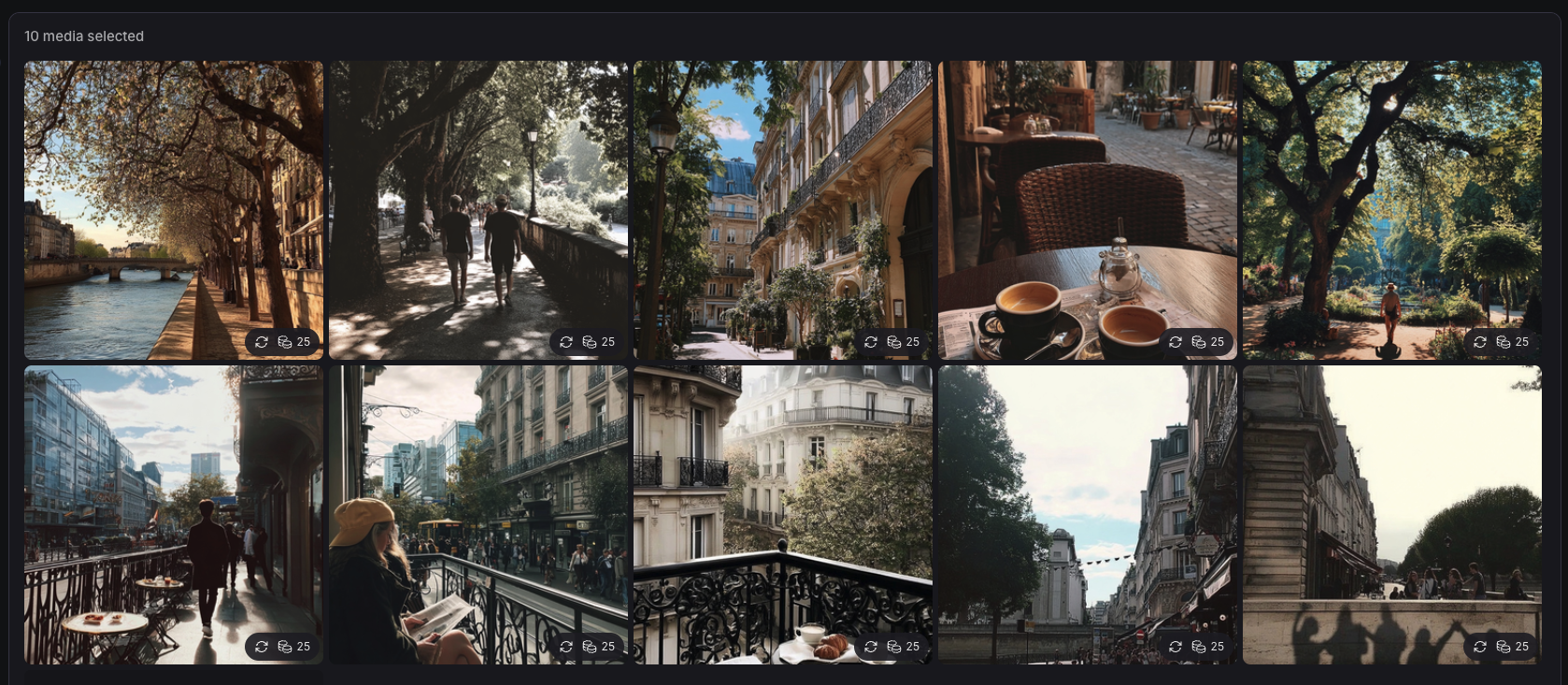
Now Cuts pulls in your uploaded visuals — videos, images, or both — and assigns them to the cut points. The order is the order you uploaded them in (so you have control over narrative if you want it), but Cuts decides how long each clip plays, how it transitions, how it crops, and how it stretches or compresses to fit the beat grid. Different templates apply different orchestration logic; we'll cover that in the next section.

Step 5: Caption timing

If your song has lyrics or vocal phrases, Cuts can auto-generate captions that snap to the nearest kick — Kaiber's signature touch. The caption appears slightly before the vocal lands and disappears on the next strong beat. The result is the kinetic typography style you've seen on every viral lyric video — except you didn't have to manually time anything.

Step 6: Multi-aspect render

Finally, Cuts renders the finished edit in multiple aspect ratios in a single pass. 9:16 for TikTok, Instagram Reels and YouTube Shorts. 1:1 for Instagram feed. 16:9 for YouTube. Cuts crops intelligently — keeping faces and motion-centers in frame as the aspect ratio changes — instead of just letterboxing.

The result

You uploaded a song and a folder of clips. You got back ten polished, beat-synced, captioned, multi-aspect-ratio music videos in about five minutes. None of which you touched a timeline for.
03 · The Templates

Three templates. Three vibes.

Cuts ships with three Beat Sync templates, each tuned for a different musical genre and visual aesthetic. Picking the right one is most of the creative decision.

Templates aren't just preset filters. They control the underlying orchestration logic — how aggressive the cuts are, how long each clip plays, how dynamic the transitions feel, how captions render. Pick the wrong template and your video will feel out of step with your track. Pick the right one and the result will feel like a $5,000 commission.

TEMPLATE / 01

High Energy

Best for · EDM, hip-hop, dance, drum & bass

The fastest, most aggressive template. Cuts land on every kick, color shifts hit on every snare, captions punch in and out at quarter-note intervals. Made for the kind of tracks where the visuals need to keep up with the energy.

  • Cuts on every kick
  • Sub-second clip changes
  • Bold kinetic captions
  • High contrast, saturated grading
TEMPLATE / 02

Cinematic

Best for · indie, ambient, R&B, soundtrack

The atmospheric template. Cuts breathe with the song's structure — landing on dynamic shifts, chorus entries, dramatic pauses — instead of every beat. Captions read as poetry instead of typography. Made for music that asks the viewer to feel something specific.

  • Cuts on structural moments
  • Longer clip dwells (3–8 sec)
  • Subtle, spacious captions
  • Filmic color grading
TEMPLATE / 03

Time Skip

Best for · pop, lo-fi, vlog content, recap reels

Multiple cuts from the same clip — like a timelapse, but better. Cuts samples short fragments from each piece of footage you upload and rapidly intercuts them, creating a pseudo-montage that feels alive even when your source material is mostly static.

  • Multiple cuts per source clip
  • Pseudo-montage effect
  • Works with limited footage
  • Vlog-style energy

The Time Skip template deserves special attention because it's the one that solves the most common problem: you don't have enough footage. Most musicians and indie creators are working with limited source material — a couple of clips from a studio session, a few iPhone shots, maybe an album cover. High Energy and Cinematic both assume you have enough visual variety to fill three minutes of cuts. Time Skip doesn't. It treats each piece of source footage as a mineable resource, sampling short fragments and intercutting them at speed to manufacture energy from nothing. The result is the dense, fast-cutting visual style that dominates short-form vertical video right now.

Switching templates after generation

One of the underappreciated workflow features in Cuts: you can render once, then switch templates and re-render against the same uploaded media without paying anything extra. The template is metadata, not a destructive operation. Try High Energy first; if the song needs more space, switch to Cinematic; if you want to ship a vertical-video sibling, try Time Skip. Compare the three side by side and pick the winner.

Pro tip from production teams

Many studios render all three templates in parallel and ship them as a content series — one cinematic music video as the centerpiece, one high-energy version for paid social, one time-skip variant for daily algorithmic feeding. Same song, three pieces of content, ten minutes of work.

04 · The Workflow

From upload to export, step by step.

The Cuts workflow has six discrete steps. Each one is genuinely simple. The whole thing takes about five minutes the first time and three minutes once you know what you're doing.

01

Open the Video Editor & choose Beat Sync.

Launch Superstudio. From the left toolbar, open Video Editor. Choose Beat Sync from the two main modes (the other being Timeline Edit, which we'll cover later). You're now in the Cuts workspace. The interface is intentionally minimal — three buttons and a media drop zone.

Opening the Video Editor in Kaiber Superstudio
02

Pick a template.

Choose between High Energy, Cinematic and Time Skip. The interface previews each one with a sample animation so you know what aesthetic you're committing to. Don't overthink this — you can re-render with a different template at any point without re-uploading or paying anything.

Choosing a Beat Sync template
03

Upload your audio + visuals.

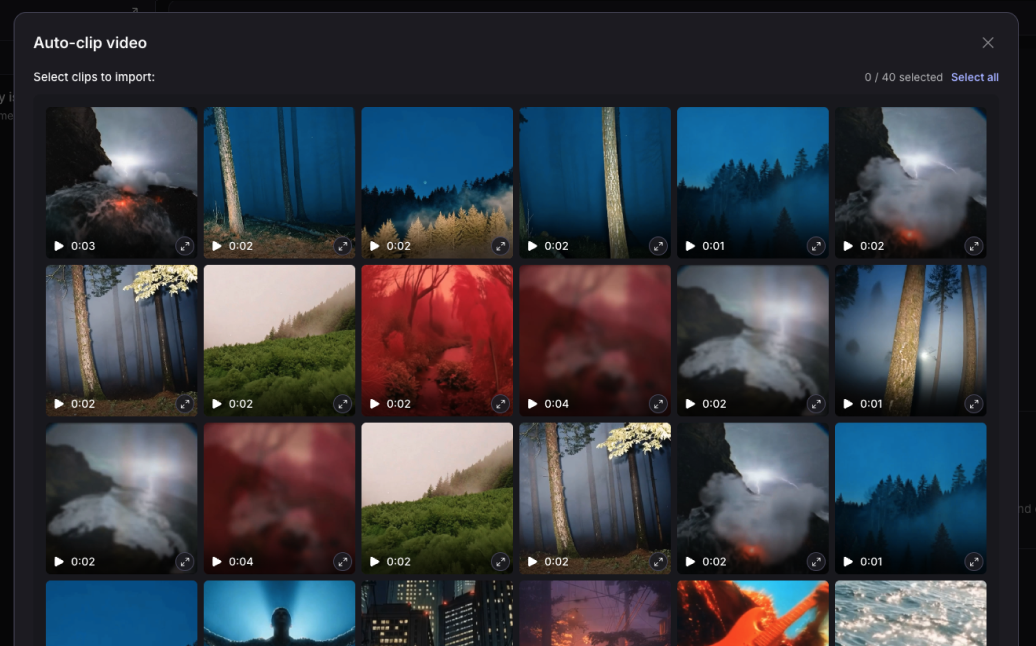
Drag and drop your audio file (any common format — mp3, wav, m4a) plus one or more images or video clips. You can upload directly from your device or pull from your existing Superstudio Assets library. Videos and images will play in the sequence you upload them, so order matters if you care about narrative.

04

Play back & adjust.

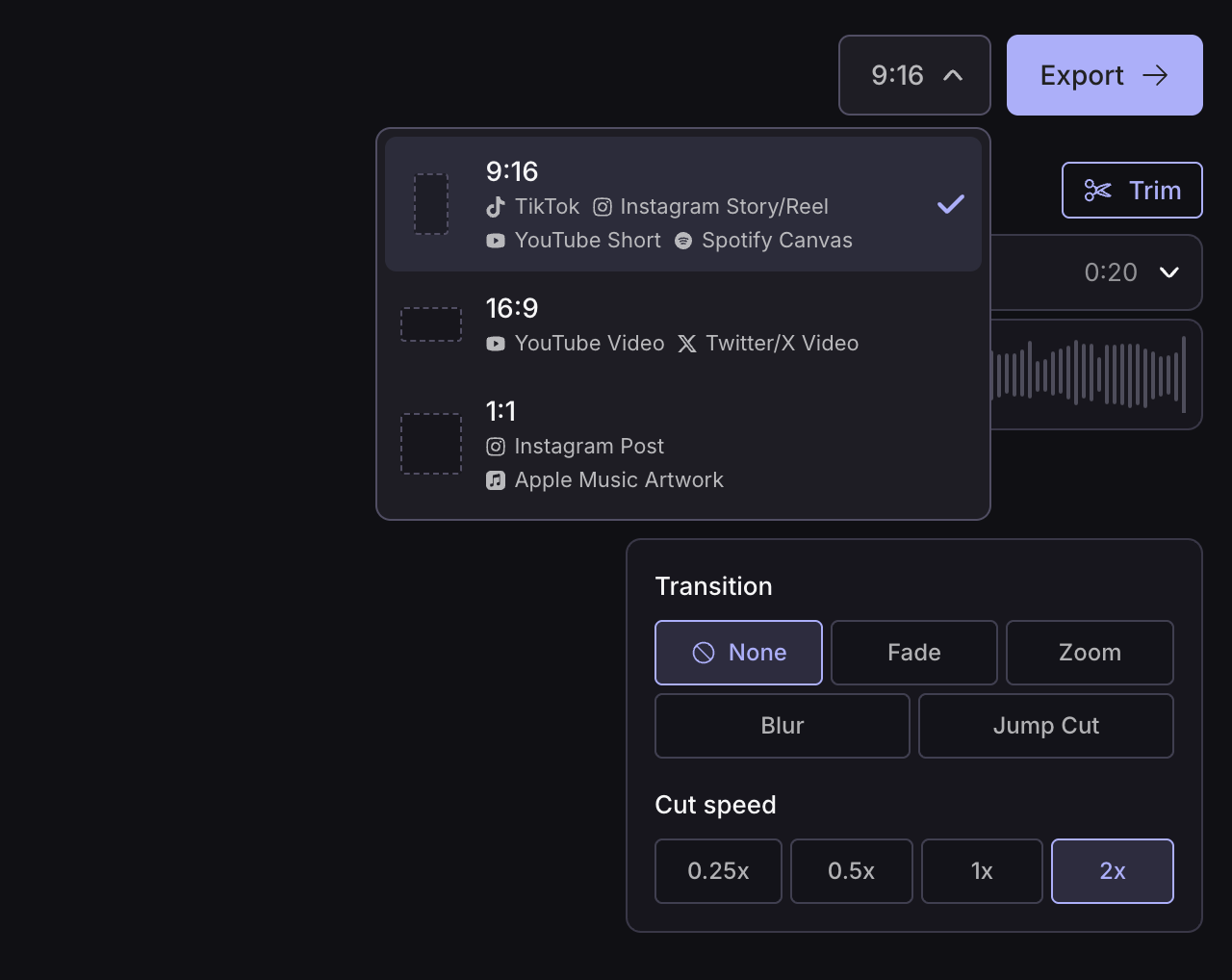
Cuts generates a draft instantly. Hit play and watch your edit in real time. The interface gives you three live controls: transitions (how clips move from one to the next), speed (overall playback rate), and beat multiplier (how aggressively cuts land — every beat, every other beat, every fourth beat). Tweak until it feels right.

05

Optional: drop into Timeline Edit.

If you want manual control over a specific cut — say, you want to extend one shot or add a custom transition — click Edit manually on timeline. Cuts hands the project off to Timeline Edit (the manual NLE inside Kaiber Editor) with all your beat markers preserved. You can fine-tune anything, then bounce back. This step is optional — most users skip it.

Fine-tuning a Cuts project in Timeline Edit
06

Export in every aspect ratio.

Click Export in the top-right. Choose one or more aspect ratios — 9:16 vertical, 1:1 square, 16:9 widescreen — and Cuts renders all of them in a single pass. Preview each, then download. Your project auto-saves to My Edits, so you can come back and re-render any version later without losing your work.

Exporting a Cuts video to multiple platforms
05 · Captions & Aspect

Captions snap to kicks. Aspect ratios render in parallel.

Two of the most labor-intensive parts of music-video post — caption timing and platform-specific cropping — happen automatically inside Cuts.

Auto-captions, snapped to the nearest kick

Cuts auto-generates captions from your audio's vocal stem (separated out by Audioshake in the analysis pass). What makes Kaiber's caption system unusually good is the snap-to-kick behavior: instead of timing captions to the precise millisecond a vocal phrase begins, Cuts rounds caption changes to the nearest kick or strong beat. The result is captions that feel musical instead of mechanical — they arrive on the beat, hold across phrases, and disappear on a transition. It's the difference between captions that feel like part of the song and captions that feel like an accessibility afterthought.

You get control over the styling without having to touch every individual caption. Pick a font from the library, pick a position (top, middle, bottom-third), pick a color treatment (high-contrast, soft fade, kinetic-bold). Cuts applies it consistently across the whole edit. If you want to tweak a single caption — say, to fix a transcription error or rephrase an awkward line — you can do that in Timeline Edit without touching anything else.

Multi-aspect-ratio export, in one render

The other thing creators usually pay an editor a full day to do is platform-specific cropping. A music video meant for TikTok needs to be 9:16 vertical with the subject centered. A YouTube version needs to be 16:9 with the action visible across the full frame. An Instagram feed version needs to be 1:1 square. Most editing tools force you to render each aspect ratio separately, manually re-crop every shot, and end up with three slightly different cuts.

Cuts handles this in a single render pass. When you export, you select which aspect ratios you want — 9:16, 1:1, 16:9, or all three — and Cuts produces all of them simultaneously. The cropping is intelligent: it tracks faces and motion-centers across the edit and re-frames automatically so that important content stays in frame regardless of aspect ratio. You don't have to think about it.

What this saves

A typical agency charges 4–6 hours of editor time to ship the same music video in three aspect ratios with synced captions. Cuts does it in one click. For high-volume music marketing teams, this is the single most measurable productivity win in the entire suite.

06 · Variations

Why ten variations matters more than one perfect take.

Cuts auto-generates up to ten distinct video variations from a single upload. Here's why that's the most useful number, and how serious creators actually use it.

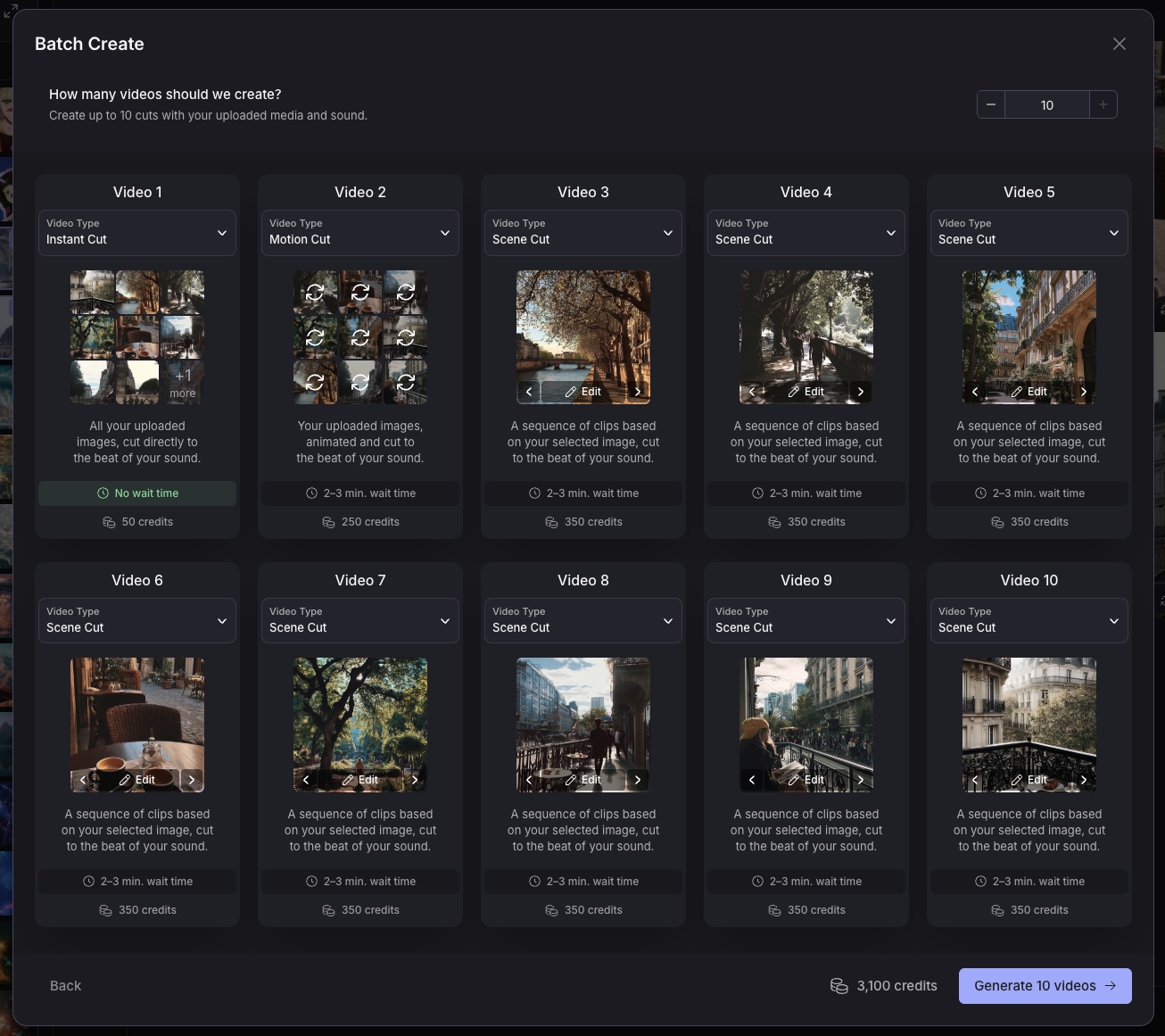
The decision to ship variations rather than a single output is one of the more interesting product calls Kaiber made with Cuts. Most AI tools — Pika, Runway, Veo — give you exactly one output per generation request. You either like it or you don't, and if you don't, you re-prompt and try again. Cuts takes the opposite approach: one upload, ten options, generated in parallel from the same source material with subtly different orchestration choices.

The reason is creative selection. AI generation is statistical — even with identical inputs, two runs can produce meaningfully different outputs. Some are great. Some are just okay. Some are unexpectedly brilliant in ways you would never have prompted toward. By generating ten variations and letting you pick, Cuts dramatically increases the chance that at least one of the outputs is the version you actually want to ship.

Working creators use this in two distinct ways. The first is selection: render ten, pick the best one, ship that. The second is portfolio: render ten, ship multiple. Post the cinematic version on YouTube. Post the high-energy version on TikTok. Post the time-skip version as a Reels teaser. Use the captioned version as the Spotify Canvas. Use the un-captioned version as a thumbnail-loop on your artist site. One song just became seven pieces of content.

How the variations differ

Each of the ten variations is generated with subtly different choices: different cut placement on ambiguous beats, different visual ordering, different caption styling, different transition types, different speed multipliers. The variations are not random — they're spread deliberately across an aesthetic range so you have options that feel meaningfully different from each other.

The ten-variation render is a single credit charge. You don't pay per variation; you pay per upload. That's a deliberate alignment of incentives — Kaiber wants you to explore, compare, and ship the best take, not feel like you're burning credits to find it.

07 · Comparison

Cuts vs manual editing.

A side-by-side breakdown of what Cuts replaces in your workflow — and what it deliberately doesn't replace.

Task Manual editing (Premiere / DaVinci) Cuts (automated)
Cut placement on beats Manual razor cuts every kick (15–30 min for a 3-min track) ● Automatic snap-to-beat
Caption timing Manual keyframing per phrase (30–60 min) ● Auto-snapped to kicks
Multi-aspect render 3× separate renders + manual crop per aspect ● Single render, intelligent crop
Variation generation Manual duplicate + retime (1–2 hr per variation) ● 10 variations per render
Stem separation Requires separate plugin (RX Connect, etc.) ● Built-in via Audioshake
Color grading control Per-clip granular control (lift/gamma/gain) — Template-level only
Custom transitions / VFX Full library, per-cut control — Limited to template presets
Long-form (10+ min) Full support — Best under 4 minutes
Total time (3-min music video, 1 aspect) 2–6 hours skilled editor work ● ~5 minutes

The honest framing: Cuts is not a Premiere replacement. It's a Premiere shortcut for the specific task of beat-synced music video editing. If your job is the bulk of music-video post — placing cuts on beats, timing captions, rendering for multiple platforms — Cuts replaces that work entirely. If your job is granular color grading, custom VFX compositing, or feature-length narrative editing, Cuts isn't the tool. Use it for the pieces it handles, and bounce out to a real NLE for the pieces it doesn't.

For the 80% of music-video work that's mechanical and repetitive, Cuts collapses hours into minutes. For the 20% that needs human creative judgment, Kaiber gives you a clean handoff path into Timeline Edit (within Editor) or out to your DAW of choice.

08 · Audiences

Who Cuts is for.

Cuts is unapologetically focused. Here are the four audiences for whom it's transformational — and one for whom it isn't.

/ 01 — INDIE MUSICIANS

Indie musicians shipping singles

If you release music monthly or weekly, Cuts is genuinely industry-rewriting. A 4-second Spotify Canvas, a 30-second TikTok teaser, a full-length lyric video — all from the same upload, all beat-locked, all in five minutes. The cost-per-music-video drops from thousands to effectively zero, and the turnaround time drops from weeks to coffee-break-sized.

/ 02 — SOCIAL TEAMS

Music labels & social marketing teams

If your job is shipping daily content for a roster of artists, Cuts is the throughput multiplier. Render ten variants of one song's hook, ship them across the week, AB-test which ones land. Multi-aspect export means TikTok, Reels and Shorts all come out of one render. Captions are automatic. Brand-grade output without an editor in the loop.

/ 03 — DJs & LIVE PERFORMERS

DJs & live performers

For DJs who want stage visuals, Spotify Canvases for mix uploads, or pre-show teasers, Cuts handles the entire visual side of the pipeline. Drop in a snippet of your set, drop in some footage, render. The Cinematic template in particular suits long-form mix promotion. The Time Skip template is built for the energy of live performance teasers.

/ 04 — CONTENT CREATORS

YouTubers, TikTokers, podcast clip-makers

Anyone making short-form vertical content from longer source material. Podcast clip producers can drop in an audio clip plus relevant b-roll and ship a beat-synced highlight. Vloggers can compress hours of footage into a one-minute weekly recap. The Time Skip template was designed specifically for this audience.

And one audience for whom Cuts is not the right tool: anyone making long-form narrative content (10+ minutes), anyone who needs frame-accurate manual control over color and effects, or anyone making non-music-driven content where beat-sync is irrelevant. That's not a knock on Cuts — it's just the wrong product for those jobs. Use Editor for those, or a traditional NLE if Editor doesn't have the depth you need.

09 · The Suite

Cuts inside the Superstudio workflow.

Cuts is one of three connected products. Here's how it fits with Canvas (generation) and Editor (manual polish).

Cuts works standalone — you can use it as a single-purpose music video tool without ever touching the rest of the Kaiber suite. But its real power emerges when it's chained with Canvas and Editor in a shared workflow. Most professional Kaiber users move between all three depending on the stage of the project.

C UPSTREAM

Canvas

Generate raw visual material with AI. Use Canvas to create stylized footage, branded backgrounds, character animations, or experimental art loops. Send the finished assets straight to Cuts for the auto-edit step.

C YOU ARE HERE

Cuts

Auto-edit raw material into beat-synced music videos. Pick a template, upload audio + visuals, render ten variations. Ship straight to social, or send to Editor for polish.

E DOWNSTREAM

Editor

Manual timeline polish for the parts Cuts couldn't automate. Stack additional audio layers, fine-tune individual cuts, add custom text or VFX, then export final masters in any aspect ratio.

The connective tissue is the Media Library. Every asset you generate in Canvas, every export from Cuts, every save from Editor — all of it lives in your Media Library and is accessible from any of the three products. You can drag a Cuts export back into Canvas to remix it, or pull a Canvas-generated still into Cuts as a starting visual. There's no re-importing, no file format wrangling, no version mismatches. The three products are technically different surfaces of the same workspace.

For a real production example: an indie label might generate stylized character animations in Canvas using a custom-trained model, run them through Cuts with the artist's new single to ship ten variations across platforms, and bounce one of those variations into Editor to add an additional voiceover track for the YouTube version. Three products, one workspace, one credit pool, one continuous flow.

10 · Pricing

Cuts pricing, decoded.

Beat Sync is free. Where the costs come in is Canvas-side generation and high-resolution export — here's the practical breakdown.

The headline is genuinely surprising: Beat Sync is free on every Kaiber tier, including the free trial and the no-subscription Flex plan. Manual Timeline Edit (the polish step inside Editor) is also free for all users including Flex accounts. You can sign up, try Cuts with your own audio and visuals, and export at standard resolution without ever paying anything.

Where credits come into play is on the upstream and downstream edges of the Cuts workflow:

  • Canvas-generated visuals · If you're feeding Cuts AI-generated video instead of your own footage, those Canvas generations cost credits per second.
  • Video upscaling · Standard Cuts exports come out at base resolution. Pushing to 1080p or 4K via the Video Upscaler (in Canvas) costs additional credits per export.
  • Custom-trained models · If you want Cuts to use a custom-trained LoRA model for visual generation, the training run is ~500 credits one-time.

For a creator working with their own iPhone footage and just needing standard-resolution output, Cuts is essentially free forever. For a creator who wants AI-generated footage, custom-style training, and 4K export, the credits add up — but those costs sit upstream in Canvas, not in the Cuts auto-edit itself.

Free / Flex

$0/forever
100 starter credits · Beat Sync free

Full Cuts access at standard resolution. Personal use only; outputs may carry a watermark.

Creator

$15/month
1,000+ credits/month · commercial use

Recommended for working musicians and social teams. Full commercial rights, all aspect ratios, no watermark.

Pro / Artist

$25/month
3,000+ credits/month · 4K export

For high-volume teams. 4K upscaling, priority queue, beta features, 20% off all credit packs.

The honest math

If Cuts is the only Kaiber product you'll use, the Free tier is genuinely sufficient for most creators. Upgrade to Creator if you need commercial rights or 4K export. Upgrade to Pro if you also need Canvas generation at volume. Don't pay for tiers you won't use — Kaiber's pricing rewards picking the right level.

11 · FAQ

Cuts, explained.

Is Beat Sync really free, or is there a catch?
It's genuinely free. Beat Sync — the underlying technology in Cuts — is available on every Kaiber subscription tier, including the trial and the no-subscription Flex plan. Manual Timeline Edit is also free for all users. The only paid components are Canvas-side AI generation (if you want AI-generated visuals) and video upscaling beyond standard resolution.
How long does Cuts take to render?
A typical 3-minute music video with 10 variations renders in around 3–5 minutes on the standard queue. Pro and Artist plan users get priority queue access, which usually halves that time. Total time from upload to export is rarely more than 10 minutes.
What audio formats does Cuts accept?
All common formats — mp3, wav, m4a, aac, flac, ogg. Cuts will analyze any of them for BPM and stem separation. The optimal format for upload is wav or flac (lossless), but mp3 at 320kbps works perfectly well for most use cases.
Can I use Cuts for content other than music videos?
Yes — Cuts works with any audio that has a discernible rhythmic structure. Spoken-word podcasts with strong cadence, voiceover narration, even the rhythmic structure of a film trailer's score. The Time Skip template in particular works well for non-musical content like vlog recaps. That said, the tool is optimized for music — if your audio doesn't have a beat, results will be inconsistent.
Do I need to upload visuals, or can Cuts generate them?
Both work. The most common path is bring-your-own-visuals — upload a song plus your own footage. But you can also generate visuals in Canvas first (using any of the 15+ supported AI models) and pull them into Cuts as the visual source. Many creators do exactly this: Canvas to create a custom visual aesthetic, Cuts to auto-edit it to a song.
Are my Cuts projects saved?
Yes. Every project you create auto-saves to a section called My Edits, accessible through the toolbar on the left of the Video Editor. You can return to any project later, swap audio or visuals, change templates, re-render with different settings, or export in additional aspect ratios — all without losing your work.
Can I commercialize my Cuts videos?
On Creator, Pro and Artist tiers — yes. Full commercial-use rights apply. The Free / Flex tier is for non-commercial use only and outputs may carry a watermark. If you're shipping for clients or monetized social channels, the Creator tier ($15/month) is the recommended starting point.
How long can a Cuts video be?
Cuts is optimized for content under 4 minutes — the typical music video length. Technically the tool will accept longer audio, but quality drops as the song length increases because the beat-detection grid becomes less reliable. For long-form content (10+ minutes, full mixes, DJ sets), use Timeline Edit instead.
Can I edit captions after Cuts generates them?
Yes, in two ways. You can adjust caption styling (font, color, position) globally before export. Or you can drop into Timeline Edit and edit individual captions one by one — fix transcription errors, rephrase awkward lines, adjust timing for specific phrases. Timeline Edit is free on all plans.

Drop in a song.
Get back ten music videos.

Beat Sync is free on every plan, including the trial. Sign up, upload, render — all without a credit card.

Try Cuts · Beat Sync free