FREE Timeline Edit is free - every plan, every user, no subscription required.
PRODUCT · EDITOR

The generative timeline. For finishing touches.

Editor is Kaiber's timeline-based video editor built directly into Superstudio, connected to your Canvas generations, and free on every plan. Sequence clips, layer audio, add transitions and text, then export across every aspect ratio in a single render.

EDITOR · TIMELINE
V1
V2
A1
TXT
$0Cost — free for every user
3Aspect ratios per export — 9:16, 1:1, 16:9
Track layers — V/A/text
15+Source models via Canvas
5Workflow steps

What's in this guide

  1. Why Editor exists
  2. What Editor actually is
  3. The Timeline Edit workflow
  4. Editing tools, in detail
  5. Linked media & generative editing
  6. Multi-aspect export
  7. Editor vs traditional NLEs
  8. Editor inside the suite
  9. Who Editor is for
  10. Pricing & access
  11. Frequently asked questions
01 · The Problem

You shouldn't have to leave Kaiber to finish your video.

Editor exists because the old AI video workflow involved exporting your generations, opening them in a separate NLE, finishing them there, and never being able to regenerate without starting over.

For a long time, the Kaiber workflow ended at "generate." You'd open Superstudio, work in Canvas to produce visuals, run those visuals through Cuts to auto-edit them, and at some point — almost always — you'd hit the limit of what an automated pipeline could do for you. You needed to layer in a custom voiceover. Adjust the timing of a single transition. Add a logo over the third shot. Cut a scene that was a beat too long. Whatever it was, it required a level of manual control that automated tools deliberately don't expose.

So you'd export. You'd download the generations as files. You'd open Premiere or DaVinci or Final Cut. You'd reimport everything. You'd build a new project from scratch. You'd finish the video there. And then, inevitably, halfway through that finishing pass, you'd realize one of the generations needed a re-render — a different angle, a different style, an extension by two more seconds. Now you'd have to bounce all the way back to Kaiber, regenerate, re-export, re-import, replace the clip in your NLE, and lose all the timeline work tied to the old version.

That round-trip is what Kaiber's Mary Zhang — one of the designers behind Editor — describes in her published portfolio writeup: "Users must export selected media to external video editing tools to compile, sequence and edit. Users must switch back and forth between Superstudio and video editing to edit and regenerate clips in their sequence." The friction was real, and it was killing creative momentum. Every context switch between AI generation and timeline editing was a moment where ideas died in transit.

Users must export selected media to external video editing tools to compile, sequence and edit. Users must switch back and forth between Superstudio and video editing to edit and regenerate clips in their sequence. — Kaiber Editor design research, 2024

Editor solves this by collapsing the timeline directly into Superstudio. You no longer leave to finish. The clips you generated in Canvas are already in your Media Library. The variations you rendered in Cuts are right there too. You drag them onto a multi-track timeline, sequence them, layer audio, add transitions and text, and export — all in the same browser tab, with no platform jumping. And critically, when you need to regenerate something, you don't break the timeline. The regenerated clip slots back in with all its placement and timing intact. That's the part traditional NLEs simply can't do.

And here's the genuinely surprising part: Editor is free. Timeline Edit, the underlying mode, is available to every Kaiber user — including the no-subscription Flex plan and the free trial. Manual editing in Kaiber doesn't cost credits, doesn't require a subscription tier upgrade, and isn't gated behind any paywall. You can sign up today, drag in your own footage, edit it on a timeline, and export — all without touching a credit balance.
02 · What Editor Is

A timeline editor. With AI in the back pocket.

Editor isn't trying to replace Premiere. It's a deliberately focused timeline tool — basic but complete — with one feature no traditional NLE has.

Kaiber's official product description for Editor is one sentence long, and worth reading carefully: "A timeline video editor for sequencing clips, layering audio, adding transitions and text, and exporting in multiple aspect ratios. For full projects or finishing touches." Notice what's there and what isn't. There's no claim about advanced color grading. No claim about complex compositing. No claim about feature-film capability. The scope is deliberately tight — sequence, layer, transition, text, export. That's the whole tool.

Third-party reviews characterize the Editor interface honestly: "Compared to full NLE video editors, the interface is much more basic, with no advanced tools to overwhelm you since the editing options are pretty limited. You mainly use it to split and reorder clips, or add simple captions." Kaiber didn't try to compete with Adobe on feature depth — they tried to make the simplest timeline that could finish a project, and they made it free. The trade-off is intentional.

What Editor does well

Within its chosen scope, Editor is genuinely capable:

  • Multi-track timeline · Stack video, audio, and text on independent tracks. Mute, solo, lock or rearrange any of them.
  • Trim, split, reorder · The core NLE moves — drag clip edges to trim, split at the playhead, drag-and-drop to reorder, copy/paste sections.
  • Built-in transitions · A library of pre-built audio and video transitions for sequencing. Crossfades, dips, hard cuts, dissolves.
  • Audio layering · Stack a music bed, voiceover, and sound effects cleanly. Levels are simple but adequate.
  • Text overlays · Add titles, lower-thirds, captions, kinetic text. Style is template-driven — you pick a look, not every parameter.
  • Multi-aspect export · Render 9:16 vertical, 1:1 square, and 16:9 widescreen in a single export. Intelligent reframing keeps content in-frame.
  • Real-time preview · Scrub the timeline and see your edit play back instantly. No render previews required for most actions.
  • Auto-save · Every change saves automatically to a section called My Edits. Come back days later, pick up where you left off.

What Editor explicitly doesn't do

It's worth being clear about the limits, because picking the wrong tool is more painful than picking the right one. Editor is not built for: granular per-clip color grading (lift/gamma/gain), complex VFX compositing (motion graphics, masks, rotoscoping), multi-camera angle editing, advanced audio mixing (per-track EQ, compression, automation), proxy workflows for high-resolution footage, or feature-length projects. If your project needs any of those, finish in Premiere, DaVinci, or Final Cut.

For everything else — short-form social, music videos, ad creative, vlog cuts, lyric videos, content that lives between 15 seconds and 4 minutes — Editor handles the whole job.

The one thing no traditional NLE has

Linked media. Every clip on the Editor timeline remembers which Canvas Flow created it. You can right-click a clip, choose "regenerate" or "extend," and Editor sends the regeneration request back to Canvas while preserving the clip's timeline position, length and edit context. We'll cover this in detail in section 5.

03 · The Workflow

From upload to export, in five steps.

The Editor workflow is the simplest in the entire Kaiber suite. Five steps, from a blank timeline to a finished multi-aspect export — straight from Kaiber's own Help Center.

01

Open Video Editor & choose Timeline Edit.

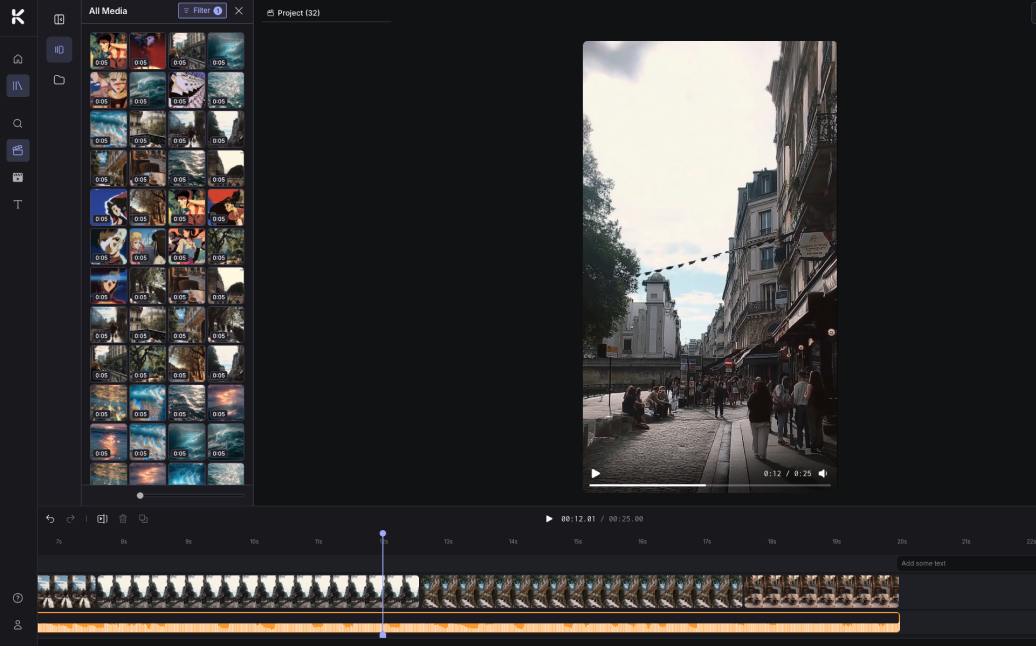
Log in to Superstudio. At the top of any Canvas, you'll see a toggle to switch between Canvas and Video Editor. Click it. Inside Video Editor, choose Timeline Edit (the other option is Beat Sync, which lives in Cuts). You're now in the manual editing workspace — a multi-track timeline at the bottom, a preview window above, and your Media Library on the left.

Opening Kaiber Editor
02

Upload audio + visual media.

Drag and drop files from your device directly onto the timeline, or pull existing assets from your Superstudio Media Library — every Canvas generation, every Cuts export, every previous Editor project. Editor accepts standard formats: mp4, mov, mp3, wav, jpg, png. There's no separate import step; files are usable the moment they land on the timeline.

Uploading media to Kaiber Editor
03

Arrange your clips.

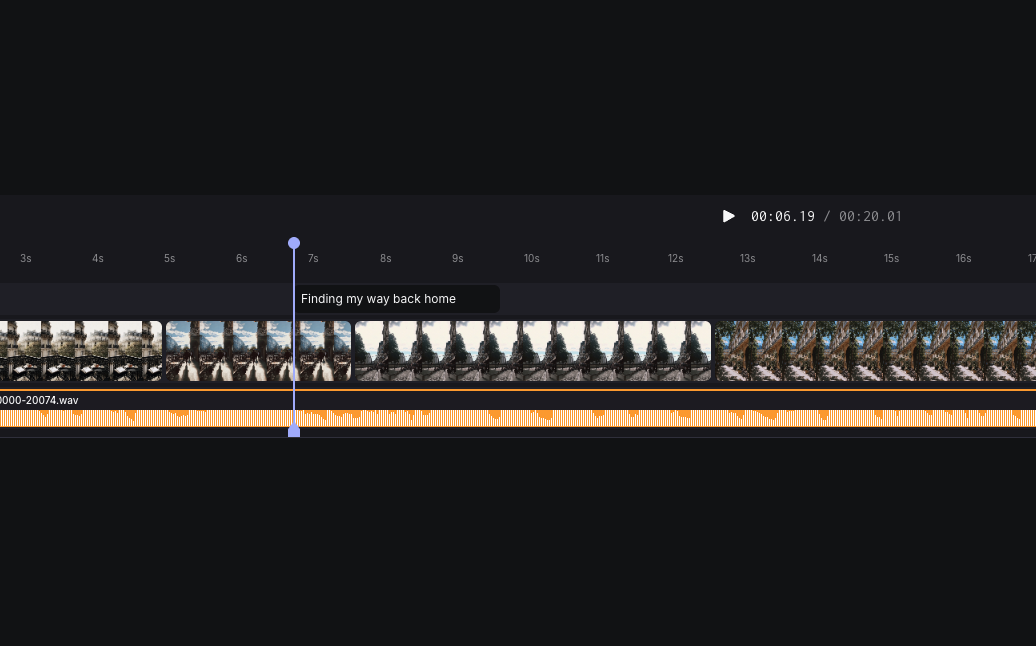
Drag clips into the order you want. Stack them on different tracks for layering — V1 for primary video, V2 for B-roll or overlays, A1 for music, A2 for voiceover, TXT for titles and captions. Trim clip edges to the length you need. Split clips at the playhead. Copy and paste sections to repeat motifs. The whole interface is built around drag-and-drop — there's almost no menu navigation required for basic editing.

04

Add transitions, text & trim to fit.

Drop transitions between clips from the prebuilt library — crossfades for soft cuts, hard cuts for sharp pacing, dips-to-black or dips-to-white for dramatic punctuation. Add text overlays from the templates panel — pick a style, type your copy, drag onto the TXT track. Trim everything to fit your audio. Editor processes changes in real time, so playback updates instantly without rendering.

05

Export in your chosen aspect ratio(s).

Click Export in the top-right corner. Choose one or more aspect ratios — 9:16 for vertical platforms, 1:1 for Instagram feed, 16:9 for YouTube — and Editor renders all of them simultaneously in a single pass. Preview each, download the ones you need. Want to upscale to 1080p or 4K? Send the export back through the Video Upscaler in Canvas after the fact.

Exporting from Kaiber Editor

One detail worth highlighting from Kaiber's official Help Center documentation: "Want to make changes? Go back at any time to make changes to previous steps or completed projects." Editor projects are non-destructive. You can re-open a finished project days or weeks later, swap clips, change transitions, re-export in different aspect ratios, all without losing your earlier work. Every project auto-saves to My Edits — accessible through the toolbar on the left side of the Video Editor at any time.

04 · Editing Tools

Every tool, in detail.

Editor's toolbox is small but complete. Here's what's actually inside the timeline — every move you can make on a clip, every layer you can stack, every transition you can drop.

Most NLE tools have a thousand features and four hundred you'll never use. Editor takes the opposite approach — fewer tools, each one well-tuned for short-form AI video work. The complete toolbox:

Trim

Drag clip edges to extend or shorten. Hold modifier to ripple-trim adjacent clips. Snap-to-grid by default; toggle off for fine control.

|

Split

Cut a clip at the playhead. The two halves become independent — trim, drag, delete or transition between them.

Reorder

Drag clips left or right along their track to change sequence. Adjacent clips slide automatically to make room.

Copy / Paste

Duplicate sections of a timeline. Useful for repeating motifs, hooks, or matching the structure of music verses.

Multi-track stacking

Layer video on V1/V2/V3, audio on A1/A2/A3, text on dedicated tracks. Higher tracks render on top.

~

Audio levels

Per-track volume sliders. Simple level matching — no per-clip automation, no EQ. Adequate for music + voiceover ducking.

▶▶

Speed control

Per-clip playback rate from 0.25× slow-motion to 4× fast-forward. Ideal for syncing visuals to a beat or compressing footage.

Transitions library

Prebuilt transitions for video and audio: crossfade, dip-to-black, dip-to-white, hard cut, audio crossfade. Drag between clips.

A

Text overlays

Add titles, captions, kinetic text. Choose from a template gallery rather than configuring per-element typography.

Snap markers

Snap clip placements to the playhead, beat markers (when audio is loaded), or other clip edges. Toggleable for fine control.

Locking & muting

Lock a track to prevent accidental edits. Mute a track to hear/see the timeline without it. Solo a track to focus on it alone.

Undo / version history

Unlimited undo/redo. Every project also auto-saves snapshots to My Edits — you can step back days, not just keystrokes.

If you've used iMovie, CapCut, or any modern simple NLE, Editor will feel familiar within five minutes. The keyboard shortcuts follow standard conventions: spacebar to play/pause, J/K/L for transport control, I/O for in/out points, Cmd-Z for undo. The interface is deliberately conventional in service of speed-of-onboarding — nothing here will surprise you, which is the point.

05 · Linked Media

The thing no other timeline editor can do.

Linked media is Editor's signature feature. Every clip on the timeline remembers the AI Flow that created it — meaning you can regenerate, extend, or restyle without breaking your edit.

Open a clip in Premiere or DaVinci, and that clip is just a file. The NLE knows nothing about how the clip was made. If you decide you want a different version — different angle, different style, two more seconds at the end — you have to leave the editor entirely, regenerate it elsewhere, export it as a new file, and replace it in your timeline. Then you have to manually re-time, re-trim, re-fit it into the cut. Every regeneration is a destructive operation against your edit.

Editor inverts that. Every clip on an Editor timeline that came from Canvas remembers its source Flow. That metadata link is preserved in the timeline forever. Right-click a clip and you get options that don't exist in any other NLE:

  • Regenerate · Re-run the original Flow with the same prompt and parameters. The output replaces the clip in-place, preserving its timeline position, length, and any transitions or effects layered on top.
  • Regenerate with variations · Run the Flow three or five or ten times with subtle variations. Cycle through the variations directly in the timeline, picking the one that fits.
  • Extend · Add more seconds to the end of the clip. Editor pulls the last frame as the start image of an extension Flow, generates the extra duration, and stitches it onto the existing clip seamlessly.
  • Restyle · Send the clip back through a different model or a different style transfer Flow without changing its content. Useful when you've finished editing and want to swap the entire visual aesthetic.
  • Edit prompt · Modify the prompt that generated the original clip and regenerate. Same composition, different content.

This is the genuinely novel thing Kaiber's Editor brings to the timeline-editor category. Editing is no longer a one-way street where you commit to assets and finish. It's a non-destructive loop where you can keep regenerating until you're satisfied — without ever leaving your edit.

How it works in practice

Imagine you're building a 60-second product reel. You've laid down eight clips on the timeline, added a music bed, dropped in transitions, and the cut feels mostly right — except the third shot doesn't quite work. The lighting is wrong; you wanted golden hour, not midday. In a traditional NLE, you'd have to re-shoot or re-render the clip somewhere else, replace the file, and rebuild your edit around it.

In Editor, you right-click the clip, choose Edit prompt, change "midday" to "golden hour," and hit regenerate. Canvas processes the request, the clip on your timeline updates with the new lighting, and your transitions and timing remain exactly as you left them. Total time: about 90 seconds, depending on the model. Total context-switches: zero.

Where this matters most

The pattern is most powerful for teams iterating with clients. The client says "make it more cinematic." Instead of going back to Canvas, regenerating, exporting, and reimporting, the editor right-clicks the relevant clips and re-runs them with the new direction inline. Feedback loops collapse from days to minutes.

Note: imported media (anything you uploaded from your device rather than generated in Canvas) doesn't have linked-media capabilities — those clips are static files like in any traditional NLE. But anything generated within Kaiber stays connected to its source forever.

06 · Export

Multi-aspect export, in one render.

The labor-intensive part of finishing a video — re-cutting it for every platform — happens automatically inside Editor. One export pass, three aspect ratios.

For most short-form content shipping in 2026, the same project needs to exist in at least three forms. A 9:16 vertical version for TikTok, Reels and YouTube Shorts. A 1:1 square version for Instagram feed and LinkedIn. A 16:9 widescreen version for YouTube and most embedded video. Traditionally, this means three separate render passes, three separate cropping passes, and three subtly different versions to manage.

Editor renders all three from a single timeline in a single export. When you click Export, you check which aspect ratios you want — pick one, two, or all three — and Editor processes them simultaneously. The intelligent reframing engine tracks faces, motion centers, and text overlays across the timeline and re-crops each aspect ratio so important content stays in-frame. You don't have to manually re-key for each ratio.

Per-aspect preview

Before you commit to the export, Editor shows a per-aspect preview pane. You can see how each version will look — which crop is happening, where text overlays sit, how transitions land — before any rendering happens. If a particular aspect ratio doesn't work (text overlay gets clipped in 9:16, for instance), you can adjust the source on the timeline once and all three versions update.

Resolution & upscaling

Editor exports at the native resolution of your source clips by default — typically 720p or 1080p depending on what came out of Canvas. If you need crisp 4K for paid ads or YouTube, route the finished export through the Video Upscaler Flow back in Canvas. Upscaling costs additional credits per export but preserves all your edit work; you don't have to rebuild anything to upgrade resolution.

Save points & downloads

Every export also saves to your project's history. If you export a 9:16 today and decide tomorrow you also need a 1:1 version, just open the project from My Edits, click Export, and check the new ratio — Editor only renders the additional version. The previously rendered files remain in your account, available for re-download.

07 · Comparison

Editor vs traditional NLEs.

An honest side-by-side. Editor is great for some things, deliberately limited for others. Here's the breakdown so you pick the right tool for the job.

Capability Premiere / DaVinci / Final Cut Kaiber Editor
Multi-track timeline ● Unlimited ● Unlimited V/A/text
Trim, split, reorder ● Yes ● Yes
Transitions library ● Hundreds ● Curated set
Multi-aspect export 3× separate renders ● Single render, intelligent crop
Per-clip color grading ● Granular control — Template-level only
Compositing & VFX ● Full motion graphics — Not supported
Multi-camera editing ● Yes — No
Audio mixing (EQ, compression) ● Pro-grade — Levels only
Long-form (10+ min) ● Full support — Best under 4 min

The honest framing: if you're finishing a feature film, mixing a podcast, or compositing complex VFX, you need a real NLE. Editor isn't trying to compete with Premiere on feature depth. But for the 90% of short-form video work that's "stitch a few clips together with music and text and ship it across platforms," Editor is faster, simpler, free, and uniquely capable of regenerating clips inline without breaking the edit.

Most professional Kaiber users keep both tools in their workflow. They use Editor for everything that fits — most short-form deliverables, daily social content, music videos under 4 minutes, ad creative — and bounce out to Premiere or DaVinci for the projects that need granular control. The clean export from Editor lands fine in any pro NLE for those occasions.

08 · The Suite

Editor inside the Superstudio workflow.

Editor is the third leg of the Kaiber tripod — the one where everything finishes. Here's how it sits next to Canvas and Cuts.

Editor is technically the most downstream product in the Kaiber suite. Most projects flow through it last — after Canvas has done the AI generation work and Cuts has done the auto-edit work, Editor is where the human creative decisions get applied. But it doesn't have to work that way; Editor is also a perfectly fine standalone tool for editing footage you already have, even if you never touch the rest of Kaiber.

C UPSTREAM · 1

Canvas

Generate raw visuals with AI. Every Canvas output flows into the Media Library as a linked-media asset, ready to drop onto an Editor timeline with regenerate-in-place capability.

C UPSTREAM · 2

Cuts

Auto-edit beat-synced music videos. Use Cuts as a fast first-cut, then click "Edit manually on timeline" to drop the project straight into Editor for fine-tuning.

E YOU ARE HERE

Editor

Manual timeline polish. Sequence, layer audio, add text and transitions. Regenerate clips inline without breaking the edit. Multi-aspect export. Free for every user.

The connective tissue between all three products is the Media Library. Anything you generate in Canvas lives there. Anything you export from Cuts lives there. Anything you save from Editor lives there. The library is searchable, filterable, taggable, and shared across all three tools. There's no re-importing between products — files generated in Canvas show up in Editor's media browser the moment you switch tabs.

For a typical full project: a creative team might generate stylized character animations in Canvas using a custom-trained model, run them through Cuts with the artist's track for a fast first-cut, drop that project into Editor to layer additional voiceover, add titles and captions, replace a couple of clips that didn't quite work (using the regenerate-from-timeline feature), and export the final master in three aspect ratios. Three products, one continuous workflow, one credit pool.

The free entry point

Notably, Editor's free-for-everyone status makes it the most accessible entry point to the entire Kaiber ecosystem. A user can sign up, edit their own footage on a timeline, and export — all without ever paying anything or even understanding how Canvas or Cuts work. Once they're comfortable, the upgrade path is natural: they import a Canvas-generated clip into their edit, see it work, and graduate into the broader Kaiber workflow.

09 · Audiences

Who Editor is for.

Editor is the broadest-audience product in the Kaiber suite. Almost any creator working in short-form video gets value out of it — here are the four most common profiles.

/ 01 — KAIBER POWER USERS

Existing Canvas & Cuts users

If you're already generating in Canvas or auto-editing in Cuts, Editor is the obvious last step. The linked-media regeneration loop is the killer feature — finish your edit, then iterate on individual clips without breaking anything else. For anyone who's been bouncing between Kaiber and Premiere, Editor collapses that loop entirely.

/ 02 — INDIE CREATORS

Solo creators & YouTubers

If your content is short-form (under 4 minutes), simply structured, and platform-native — vlogs, recaps, lyric videos, reels — Editor handles the whole post-production loop. Multi-aspect export means one timeline ships to TikTok, Reels and YouTube Shorts simultaneously. No subscription cost. Auto-save to My Edits means you never lose work.

/ 03 — SOCIAL MARKETING TEAMS

Marketing & brand teams

For teams shipping daily ad creative across platforms, Editor's multi-aspect export is the time-saver. Build the master timeline once, render for every platform in a single export. The connected workflow with Canvas means client feedback like "make this scene more energetic" can be addressed without leaving the editor — regenerate, see it in context, ship.

/ 04 — FIRST-TIMERS

Editing newcomers & AI-curious creators

For anyone who's intimidated by Premiere or DaVinci, Editor is the lowest-barrier video timeline available. It's free, browser-based, deliberately simple, and forgiving. If you've used iMovie or CapCut, the learning curve is essentially zero. It's also a perfect first taste of the Kaiber suite — you can use it without ever generating anything with AI.

And once again, who Editor is not for: anyone editing feature-length films, anyone needing professional color grading or audio mixing, anyone working with multi-camera footage, or anyone whose project requires advanced VFX or motion graphics. Those workflows still belong in Adobe, Blackmagic, or Apple's ecosystems. Editor stays focused on what it does best.

10 · Pricing

Pricing & access.

Editor is the simplest product in the Kaiber suite to price — because there's no price.

Timeline Edit (the underlying mode that powers Editor) is, per Kaiber's own Help Center: "free for all users, including Flex accounts." That includes the no-subscription Flex plan, the 5-day trial, and every paid tier. There's no separate Editor subscription. There's no credit charge for using the timeline. You can edit unlimited projects, save unlimited versions to My Edits, and export at standard resolution — all without ever spending a cent.

Where credits enter the picture is on the edges of the Editor workflow:

  • Generating new clips in Canvas · If you regenerate a linked-media clip from the Editor timeline, that regeneration runs through Canvas and costs the standard Canvas credit rate for that model.
  • Upscaling exports · Standard Editor exports come out at native resolution. Pushing through the Video Upscaler to 1080p or 4K costs additional credits per export.
  • Adding AI-generated audio · If you use Stable Audio inside the timeline to generate music or SFX, that generation costs credits.

For an editor working with their own pre-shot footage and their own audio, the entire Editor workflow remains free. The credit charges only kick in when you specifically use AI generation features within the editor.

Flex / Free

$0/forever
Editor: free · 100 starter credits

Full Editor access at standard resolution. Personal use only on free; Flex pay-as-you-go for credits.

Creator

$15/month
Editor: free · 1,000+ credits/month

Recommended for working creators. Commercial-use rights, all Canvas models unlocked, multi-aspect export.

Pro / Artist

$25/month
Editor: free · 3,000+ credits/month

For high-volume teams. 4K upscaling, priority queue, beta features, 20% off all credit packs.

The genuine pitch

Editor is the most accessible entry point to the entire Kaiber ecosystem. If you've been curious about Kaiber but unsure where to start, opening Editor with your own footage costs you nothing and gives you a complete short-form video editing workflow. Graduate into Canvas and Cuts when you're ready. There's no obligation in either direction.

11 · FAQ

Editor, explained.

Is Editor really free, or is there a catch?
It's genuinely free. Per Kaiber's own Help Center documentation, Timeline Edit is free for all users, including Flex accounts. There's no separate Editor subscription, no credit charge for the editing itself, and no feature gates between free and paid tiers on the editing side. The only paid components are AI generation (Canvas) and high-resolution upscaling — both optional within the Editor workflow.
Can I use Editor without ever generating anything with AI?
Yes — completely. Upload your own footage, your own audio, your own images. Edit them on the timeline, add transitions and text, export in multiple aspect ratios. You never need to touch Canvas or Cuts. Editor functions as a standalone short-form video editor for anyone who just needs a free browser-based timeline.
How is Editor different from Cuts?
Cuts is automated — you upload media and it auto-generates beat-synced edits. Editor is manual — you decide every cut, every transition, every layer. Cuts is the right tool for "make me a music video fast"; Editor is the right tool for "I know exactly what I want, I just need a timeline." You can also start in Cuts and bounce into Editor for manual fine-tuning via the "Edit manually on timeline" button.
What file formats does Editor accept?
Standard formats: mp4, mov, webm for video; mp3, wav, m4a, aac for audio; jpg, png, webp for images. Drag and drop any of these directly onto the timeline or into the Media Library. There's no separate import step — files are usable immediately.
Does Editor work in the browser, or do I need to install anything?
Browser-based. Editor runs natively in Chrome, Safari, Firefox and Edge — no download, no install, no plugins. Works on macOS, Windows, Linux, and ChromeOS. Mobile support is more limited; the full timeline experience is desktop-first.
Can I commercially use videos exported from Editor?
On Creator, Pro and Artist subscription tiers — yes. Full commercial-use rights apply to your exports. Free / Flex tier exports are personal use only and may carry a watermark. If you're shipping for clients or monetized social channels, the Creator tier ($15/month) is the recommended starting point.
How many tracks can I have on the timeline?
Effectively unlimited. Stack as many video, audio and text tracks as your project needs. Most short-form work uses 2–4 video tracks, 1–3 audio tracks, and 1 text track, but Editor handles much more if your project demands it. Performance stays smooth up to roughly 20 active tracks before you'll notice playback lag on slower hardware.
Can I edit captions after Cuts auto-generates them?
Yes. Cuts auto-captions can be sent into Editor's timeline as text-track elements. From there, you can fix transcription errors, rephrase awkward lines, adjust timing, change typography, or remove captions entirely. The connection between Cuts and Editor is bidirectional — bounce between them as needed.
What's the longest video Editor can handle?
Editor is optimized for content under 4 minutes — the typical short-form length. Technically the timeline supports longer projects, but performance degrades and the tool wasn't designed around long-form workflows (no proxy support, no advanced bin management, no multi-cam). For 10+ minute projects, finish in Premiere or DaVinci instead.
Does Editor support keyboard shortcuts?
Yes — the standard NLE conventions. Spacebar toggles play/pause, J/K/L control transport speed, I/O set in/out points, Cmd-Z undoes, Cmd-Shift-Z redoes. The shortcut panel in the toolbar shows the full list. Most users get fluent within an hour.

Open Editor.
No subscription. No credit card.

Timeline Edit is free for every user. Drag in your footage, lay it out, export it across every platform — all without spending anything.

Open Editor · Free for everyone